Game Architecture is a series of blog posts where we take a high-level look at the code architecture behind free game projects and learn from them. In today’s post, we’ll be studying the Creator Kit: Puzzle project by Unity.
Quick Summary
Before we dive into the scripts, here’s a summary of what you can learn from this Unity project:
- This project is an example of using Scriptable Objects to store level information. This way, scripts can access important information without relying on a Data Manager script that persists across all levels using
DontDestroyOnLoad(). - The project illustrates proper segregation between scripts:
SceneMenudoes the logic,SceneMenuIcondisplays the information,SceneReferencecontains the data. - The
BaseInteractivePuzzlePiece.csscript demonstrates the Open-Closed Principle and the Dependency Inversion Principle of SOLID. The user-controlled puzzle pieces inherit from an abstract instead of a concrete class. Moreover, the user can easily add another puzzle piece without altering the code of the base class.
Code Architecture
App flow
- In the main menu, class
SceneMenumanages the flow. It creates a grid layout for theSceneMenuIconand display their information. This script also references theSceneReferencescriptable objects that it assigns to eachSceneMenuIconduring creation. You can edit the details of each level such as Display Name, Total Required Stars, and 1-2-3 Star Time. - Pressing the icons triggers
SceneMenuIcon.LoadLevel()that passes aSceneReferencetoSceneMenu.LoadLevel() SceneMenu.LoadLevel()checks theSceneReferencewith its list of levels and callsLevelInfo.LoadLevel()while passingScreenFaderand the total earned stars.LevelInfo.LoadLevel()does some checks and callsSceneReference.ReloadLevel().SceneReference.ReloadLevel()callsUpdateActions()andScreenFader.FadeOut().UpdateActions()callsSceneManager.LoadSceneAsync(). All GameObjects are destroyed during loading.- Once the gameplay level is loaded,
SceneFadercallsFadeIn()andTimingRecordingcallsEnableControl(). - When marble reaches goal,
TargetTriggercallsTimingRecording.GoalReached->CompleteLevelWithDelay()->SceneCompletion.CompleteLevel()which calls a PlayableDirector to show a UI animation. Player is then given the choice to go to menu or restart.
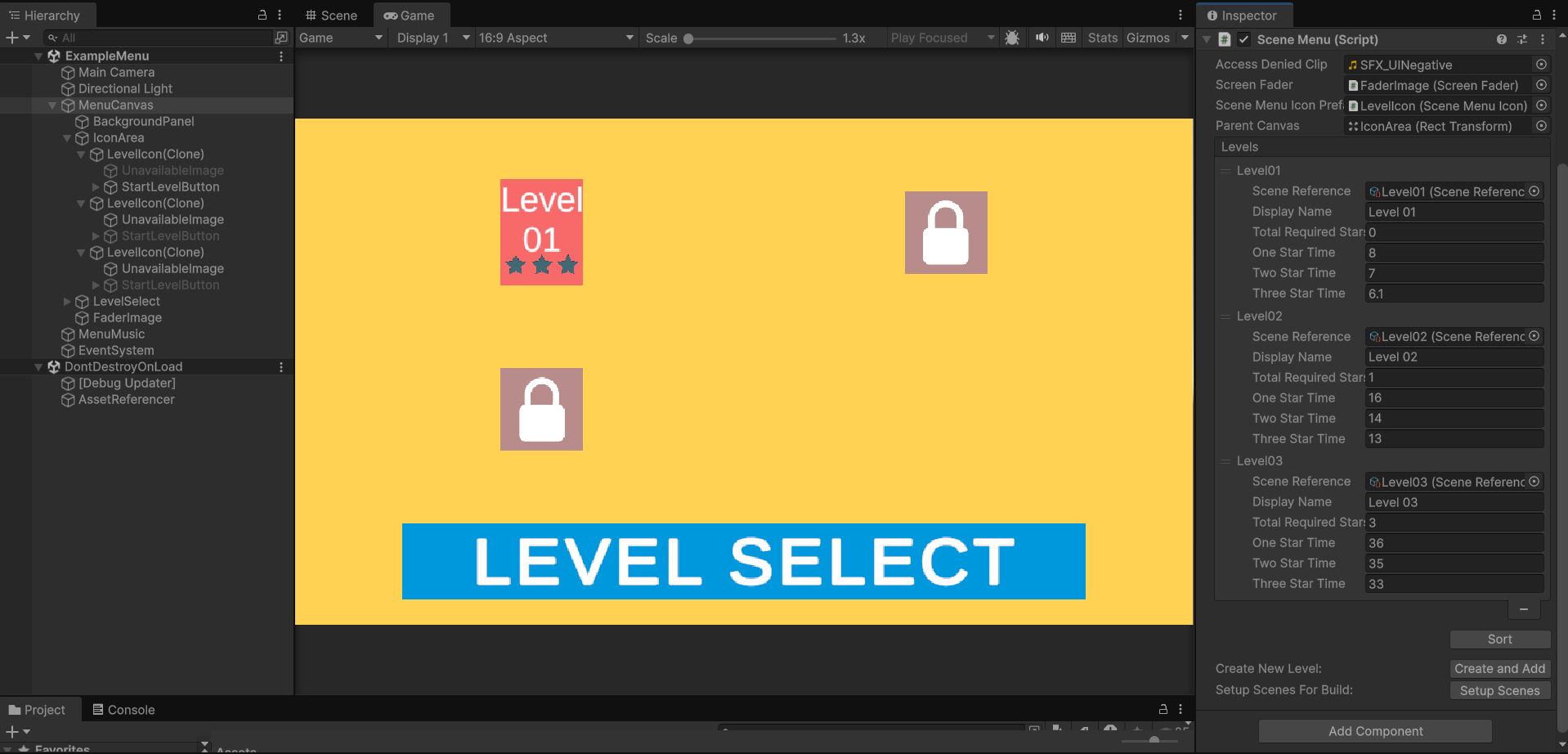
Also, SceneMenu creates an <strong>AssetReferener</strong> game object with DontDestroyOnLoad(). This game object holds SceneReference scriptable objects. I don’t see this being used anywhere else in the project. My guess is this is just a convenient way to see the player’s progress through the levels during runtime.
SceneMenuIcon– an icon the shows the user relevant information regarding each level.SceneReference– scriptable objects that contain information for each scene such as level index, earned stars, pointing system, etc. It usesSceneAsset, an editor-only class used to reference scenes in the inspector.SceneAssetcannot be used during runtime!<strong>SceneReferenceEditor</strong>– replaces the inspector for theSceneReferencescriptable objects and hides many of its properties. They did this because they want the user to edit the level parameters inside theSceneMenuinspector instead. Maybe to make it easier for non-coders. I don’t think this is necessary though.<strong>SceneReferencesBuildSetup</strong>– Editor-only helper that ensures the correct scenes are in the Unity Build Settings and thatSceneReferenceassets have correct build indices before you enter Play mode. Prevents missing menu/level scenes at runtime and avoids manual Build Settings edits each time you change levels.
Gameplay
TargetTrigger– triggers a bunch of events when the player reaches the goal. Calls theGoalReached()method inTimingRecording.InteractivePuzzlePiece– an abstract class that is the parent ofFlipper, TrapDoor,andSwingHammer.TimingRecording– on Awake, this script searches for all objects of typeBaseInteractivePuzzlePieceand enables user control for each. It also updates the Timer text. After reaching the goal, this script passes the Timer information toSceneCompletion.SceneCompletion– using on the time received fromTimingRecording, this script compares it to the pointing system in the level’s SceneReference scriptable object, record 1-2-3 stars, shows the results to the player, and reloads the menu level.
Audio
MarbleAudio– the marble’s audio changes based on speed and IsGrounded calculated byAudioAdjustmentSettings. It’s impact sound also changes depending on the other collider’s layer mask.AudioAdjustmentSettings– a struct that calculates the volume and pitch of a sound based on a number of variables.
Takeaways
Two things I see that can be improved in this current setup:
- First, there is no
GameManager,SceneLoader, orEventsManagersingleton that persists between scenes. Thus, sequences of events such as level loading end up scattered inScreenFader,SceneCompletion, andSceneReference. This setup is simpler but harder to troubleshoot. - Second, the
SceneCompletion. andTimingRecordingscripts being attached to prefabs under the UI canvas. I’d attach these scripts to a GameObject outside the canvas to separate UI from game logic as much as possible (MVC, MVP, MVVM).