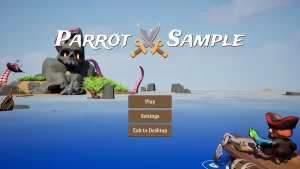
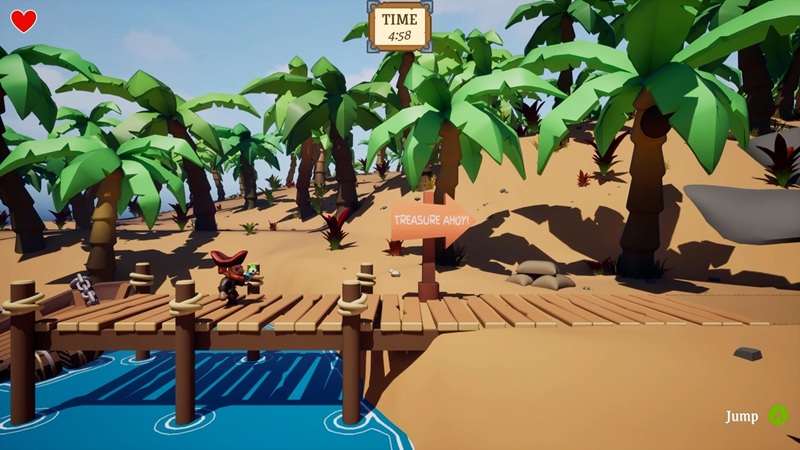
Parrot Game Sample is a beginner template project made in both Unreal and Unity. This allows developers to see how game architecture, concepts, and terms translate from one engine to the other. While the project has accompanying documentation and video, I want to shed light on certain aspects of this project. Interesting techniques can be learned here. This is why I’m writing this post.
Unreal Engine
Parrot Editor
Aside from the actual game, there is a separate ParrotEditor module that has a UParrotEditorTickActorComponent inheriting from UEditorUtilityActorComponent. This is a base class for blueprint actors used during debugging in the Editor.
Parrot Developer Settings
UParrotDeveloperSettings inherits from UDeveloperSettings. Contains project specific properties.
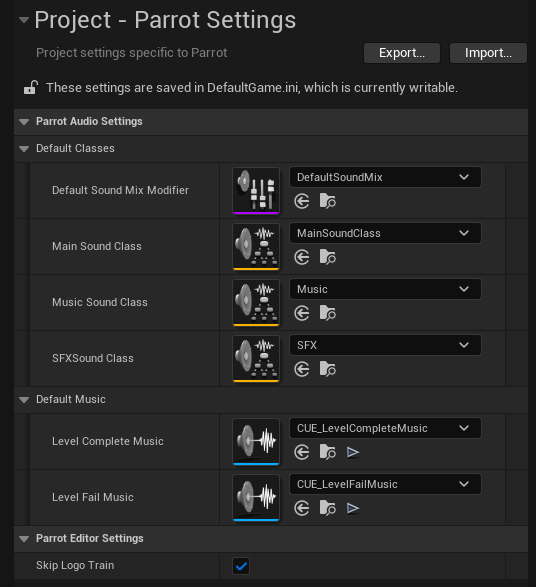
Has a static function to let runtime blueprints access the settings. ParrotAudioSubsystem references this to play the appropriate music. WBP_LoadingScreen also references this.
UFUNCTION(BlueprintCallable, Category = "Parrot Developer Settings")
static const UParrotDeveloperSettings* GetParrotDeveloperSettings();
Parrot World Settings
Each map has unique World Settings attached to it. Sometimes you want to attach custom data specific to each map (Ex. display name, background music, remaining time, camera settings, etc.) There are a couple of ways to store and reference this information. Parrot Game uses a custom <strong>AParrotWorldSettings</strong> class that inherits from AWorldSettings. This custom class is set as the default in Project Settings > Engine > General Settings > Default Classes > World Settings Class. These world settings are referenced and used by subsystems during runtime.
Why put this data in the World Settings instead of a DataTable or DataAsset (like UParrotMapDataAsset below)? It depends on the complexity. Parrot Game does not use dynamic level streaming. There is no persistent map nor data shared across many levels. Each map is standalone. Using World Settings is better in this case.
Parrot Map Data Asset
UParrotMapDataAsset inherits from UPrimaryDataAsset. Used to store data related to a particular system. In this project, it is used for soft referencing maps. It is possible to move some of the data stored in ParrotWorldSettings here. But why not store them in ParrotMapDataAsset? My guess is to prevent systems from referencing this data before it is needed, potentially loading them in memory.
Parrot Game User Settings
UParrotGameUserSettings derives from UGameUserSettings. Can be used to store settings like graphics and sound.
Game Instance and Game State
ParrotGameInstance contains the logic for async level loading, loading screens, and window-focus handling. The project uses the CommonLoadingScreen plugin from Lyra. More info about this plugin here.
ParrotGameState has the information that is meant to be known by all connected clients, and has functions that change the overall state of the game (Ex. GameOver, Victory, PlayerOutOfBounds, PlayerDeath, BossDefeted, PauseGame, etc.)
Subsystems
Subsystems are like Singletons in Unity but with managed lifetimes. The project has a ParrotCameraSubsystem (a World Subsystem) and a ParrotAudioSubsystem (a Game Instance Subsystem). Oddly, the subsystems documentation does not mention a World Subsystem even though it exists.
ParrotCameraSubsystem is a world subsystem. OnWorldBeginPlay gets the CameraActorClass from ParrotWorldSettings. Once found, it spawns an AParrotCamera in pawn’s location, pass a reference to the World Settings to it, and make the camera follow the player. In maps where there is no CameraActorClass such as the MainMenu, this subsystem will do nothing.
<strong>ParrotAudioSystem</strong> listens to ParrotGameState->OnLevelStateChanged and plays corresponding music. Binds to LoadingScreenManager->OnLoadingScreenVisibilityChangedDelegate() to play music after loading finishes. References ParrotGameSettings.
Parrot Camera
AParrotCamera is a custom camera actor that supports three modes (Follow, Fixed, None) and implements a deterministic, gameplay-driven follow behavior tuned to player movement and world bounds rather than a simple spring-follow.
- Camera movement is relative to the player’s max speed and the player’s position inside a trigger region rather than a generic smoothing function. This results in predictable camera velocity.
- Camera follows the player down but resists automatic upward movement until the player lands. This reduces jitter/whiplash during jumps/falls and gives designers control via ParrotWorldSettings.
- Camera follows player after physics are applied:
PrimaryActorTick.TickGroup = TG_PostPhysics;
Event System
I don’t see a dedicated global event event system in this project. Important events are sent to the GameState which broadcasts it to its listeners. ParrotCameraSubsystem, ParrotAudioSubsystem, and ParrotGameInstance are accessible anywhere.
BP_ParrotPlayerController
BP_ParrotPlayerController listens to ParrotGameState->OnLevelStateChanged. Toggles input, handles pausing, handles game over and victory state.
BP_ParrotPlayerCharacter
Things implemented in blueprints: Create Dynamic Material Instance for the Timeline. Playing Sound 2D, spawning VFX
ParrotHUD
BP_ParrotHUD and BP_MainMenuHUD inherit from ParrotHUD. This HUD class is used as a wrapper to the root layout widget ParrotGameLayout.
ParrotGameLayout contains a list of UI layers (containers) where “activatable” widgets can be pushed onto. At any given time only one widget per layer is being displayed.
UI Widgets
The main UI widgets in the app inherit from CommonActivatableWidget from the CommonUI plugin.
WBP_GameHUD listens to ParrotGameState and ParrotGameCharacter and displays relevant information. This widget has a Delay Until Next Tick node to wait for the PlayerCharacter’s BeginPlay to finish first. It’s fine doing this for simple projects. I think it’s good to point out that developers should be careful when relying on BeginPlay for initialization. It can get problematic when too many blueprints reference each other.
Level Blueprints
We know that Level Blueprints generally should be avoided because of how unreusable they are. Parrot Game uses the Level Blueprint only in the MainMenu map to swap the camera and to play animation sequences. These are one-off events tied to the map and are perfectly valid use cases.
Enemies
ParrotEnemyCharacterBase directly reference ParrotPlayerCharacter. Each enemy blueprint has its own small custom behavior that extends the base C++ class.
Pickups
BP_HealthPickup and BP_SpeedPickup inherits from BP_PickupBase. On overlap, the parent blueprint casts to ParrotPlayerCharacter and calls event dispatcher OnPickedUp. The child blueprints bind to OnPickedUp and implement their own behavior. The item effects are called by the items, but the function logic are in the character.
Takeaways
- Comparing C++ vs Blueprints in this project, most of the implementations are in C++. The only ones in blueprints are those not crucial to gameplay related: UI widgets, character material, sound, VFX, and enemy behavior trees. This setup lets designers and artists be able to make small adjustments. Code the rules, script the exceptions.
- It’s better for blueprints to cast to the base classes (Ex.
ParrotGameInstance,ParrotGameState,ParrotPlayerCharacter) instead of the child blueprints (BP_ParrotGameInstance,BP_ParrotGameState,BP_ParrotPlayerCharacter) so that you can safely alter the blueprints without risk of causing missing references.
Unity
There is no documentation for the Unity version of this project. Below is my attempt to summarize the project:
App flow
- The scene _Init is the entrypoint. Here the logo is displayed. ParrotApplicationInitializer calls the ParrotSceneManager singleton to change the scene to _Bootstrap.
- _Bootstrap loads PersistentResources (scene containing LoadingScreen, PlayerController, GameInstance, and AudioController) and then loads _MainMenu. OnBeforeSceneReady -> start blocking operation -> load ResourceScenes -> release blocking operation -> ParrotSceneManager finishes transition -> OnSceneTransitionComplete runs -> request PrimaryScene.
- _MainMenu has a
ParrotSceneResourcesandWorldSettingsContainer. Loads the MainMenuEnvironment and _MainMenuUI. - Each level loads dependent scenes called in
ParrotSceneResources
Scene Structure
Scenes are organized by function. “Primary” scenes hold scenes that will be used by the Parrot Scene Manager. Non-primary scenes will be loaded or unloaded as a dependency of a primary scene.
Each primary level (except _Bootstrap) has a ParrotSceneResources responsible for loading all scene dependencies and blocks the scene manager until complete:
_Bootstrap– loads PersistentResources_Level1– loads Level1Environment, _GameplayResources, _GameplayUI_Level2– loads Level2Environment, _GameplayResources, _GameplayUI_LevelBoss– loads LevelBossEnvironment, _GameplayResources, _GameplayUI_MainMenu– loads MainMenuEnvironment, _MainMenuUI
Each primary level also contains a WorldSettingsContainer that references WorldSettings. Iistens to ParrotSceneManager.OnBeforeSceneReady and fires ParrotAudioController.Instance.SetWorldMusic. That’s it, this just plays the appropriate music, but can definitely be extended to store other level-specific data.
<strong>_GameplayResources</strong> – scene containing ParrotGameMode and ParrotGameState.
<strong>WorldSettings</strong> – data object for settings on a given level. At the moment, it only contains a reference to a music file.
ParrotGameInstance, ParrotGameMode, ParrotGameState
ParrotGameInstance tries to mimic the Game Instance in Unreal. It’s a singleton that is responsible for loading levels, showing loading screen, and toggling editor test configuration. References ParrotSceneManager and PlayFromEnvironment.
The GameMode game object is in _GameplayResources. Unlike in Unreal Engine changing GameMode is done via World Settings, changing GameMode in this Unity project is done by changing _GameplayResources. It does the following:
- It starts a blocking operation on
ParrotSceneManager.Instance.BlockingOperationsto pause scene transition until initialization finishes. - It retrieves the local ParrotGameState:
- Finds the following GameObjects:
ParrotPlayerController, a GameObject with tag “PlayerStart”, and aCinemachineCamera - Spawn PawnPrefab in PlayerStart
- Initializes the player controller with the pawn and the game state
- Sets the Cinemachine camera follow target to the pawn’s
Rigidbody.transform
ParrotGameState does the same thing as the one in Unreal. It tracks the state of the game and broadcasts it to its listeners via GameplayEvents.
PlayFromEnvironment
This is a handy script for testing in the Editor. It ensures you only enter Play Mode from valid game entry points and loads required dependencies.
- Hooks into Editor play mode changes via
InitializeOnLoadandEditorApplication.playModeStateChanged. - If you try to play from the bootstrap scene, it warns and exits Play Mode (bootstrap is for initialization only).
- If you play from the main menu or a known single-player level, it:
- Records the level index (
LevelDataIndex) and flag (UsingCustomIndex). - Reloads or switches scenes through ParrotSceneManager to the proper primary scene.
- Loads a persistent resources scene additively (
PersistentResources.unity) before continuing, using a blocking operation to ensure it’s ready.
- Records the level index (
- If you play from an environment scene (e.g., a level’s Environment variant), it maps that to the corresponding primary level by name normalization (removing “_” and “Environment”).
- If the scene isn’t found in
ParrotLevelData, it warns and allows Play Mode to continue without guaranteed dependencies. - Special case: If the active scene is the Init scene, it does nothing (that’s the expected game flow).
ParrotSplashSettingsProvider
An Editor script that creates a Parrot tab in the Preferences window with the option to toggle splash screen when launching the game from the init scene. I think it’s better to change this and put the settings in the Toolbar instead for easy access.
SceneField
SceneField.cs lets you reference a scene in the inspector for runtime usage because Unity by default does not let you do so.
Event System
The project uses static delegates to broadcast certain events. These are found in ApplicationEvents.cs, GameplayEvents.cs, KeybindingsUIEvents.cs, MainMenuUIEvents.cs, PauseScreenUIEvents.cs, and SettingsUIEvents.cs.
// Example
public class GameplayEvents
{
    public static Action<ELevelState> LevelStateChanged;
}
ParrotAudioController
Just like the Audio Subsystem in Unreal, this singleton manages all sounds. It subscribes to events in ParrotSceneManager, GameplayEvents and also references ParrotGameInstance. Game objects in the scene have their own SFX that they pass to ParrotAudioController to play.
PlayerPrefs
This project saves audio settings and input bindings in PlayerPrefs .
ParrotCharacterBase
Basically a base class for ParrotPlayerCharacter and ParrotEnemyCharacterBase that contains shared logic between the two.
ParrotPlayerController
Does many things:
- It reads and processes input, forwards commands to the character
- switches between gameplay and UI input modes while coordinating with game state and application events
- initialization is called in ParrotGameMode
- subscribes to
ParrotPlayerCharacter‘s events - Saves-loads input rebinds via PlayerPrefs
- handles pausing
- InputAction magic strings are handled in
InputActionStrings.cs
ParrotPlayerCharacter
This one is a huge class with 1000+ lines.
- On a high level, it manages movement, jumping, physics checks, combat reactions, VFX/SFX, and ties into the animation controller and other gameplay systems.
- It is driven by
ParrotPlayerControllerwhich calls input methods likeUpdateMovementInputScalar, StartJumpInput, andStopJumpInput. The script applies forces to the Rigidbody in FixedUpdate. - References other scripts:
ParrotPlayerAnimationController, OutlineColorChanger, MovingPlatform, ParrotVFXWrapper, andParrotAudioController - There is no state-machine. State is represented by many (e.g.
m_IsGrounded, m_HitStunned, m_ApplyFallingGravity, m_JumpCount, m_WasLaunched).
If we follow how other Unity projects make characters, it’s possible to divide this class into multiple components: PlayerMovement, PlayerJump, PlayerGroundCheck, PlayerCombat, PlayerEffects, PlayerAnimation. I think this project chose to put everything in one class make it close to how Unreal does characters.
ParrotPositionComposer
Inherits from CinemachineComponentBase and implements a few CinemachineFreeLookModifier interfaces. This positions the virtual camera around a Follow target with extra rules for the ParrotPlayerCharacter. It is a tuned replacement of Cinemachine’s PositionComposer that adds lookahead prediction, dead-zone handling, world Y cutoffs, and special grounding-airborne behavior for ParrotPlayerCharacter.
Animation
AnimatorStrings.cs – this is a good way of handling magic strings related to Animators.
public static class AnimatorStrings
{
    public const string MovementSpeed = "MovementSpeed";
    public const string MovementAnimationSpeed = "MovementAnimationSpeed";
    public const string IsAirborne = "IsAirborne";
    public const string IsDead = "IsDead";
    ....
    ....
}
FixedAnimation.cs – script to to pose an animator. Usefull if you want it freeze its animation.
Enemy AI
Enemy AI uses Unity Behavior package. I do not recommend using this package because the development team got laid off and the package is now only supporting bug fixes and stability. Given the company’s history of abandoning packages outside of the core ones, this does not bode well. Currently it is in version 1.0.13. Below are the enemy scripts and components:
<strong>ParrotEnemyCharacterBase</strong>– is driven byBehaviorGraphAgentthat manages patrols (via an authored Spline andParrotEnemyPatrolRig). Subscribes to childParrotEnemyColliderfor collision events, and exposes methods used by the behavior graph to get next patrol points and update desired speed and forward direction. Also referencesParrotVFXWrapper, ParrotPlayerCharacter, ParrotAudioController<strong>ParrotEnemyCollider</strong>– checks collision withParrotPlayerCharacter<strong>ParrotEnemyPatrolRig</strong>– defines a spline path for the enemy to patrol. It also spawns and initializes the patrolling enemy<strong>ParrotEnemyAnimationController</strong>– controls the Anamitor for a parrot enemy and exposes animation-tied events for gameplay systems.<strong>ParrotPlayerSensor</strong>– does a raycast to sense when the player is in line of sight and relays it to the Behavior Graph<strong>ParrotCombatEnemyCharacterBase</strong>– subclass for enemies involved in combat. Functions include handling hit detection (both as attacker and when jumped on), hit reactions (stun, recoil), attack hitbox timing (driven by animation events), and death handling. Subscribes toParrotEnemyAnimationControllerevents.<strong>ParrotBossEnemyCharacter</strong>– inherits fromParrotCombatEnemyCharacterBase. Has custom behavior for the shark boss.
UI
UI in this project uses UI Toolkit. Personally, I don’t think UI Toolkit is ready for primetime.
Pickups
Does the same thing as in Unreal. Nothing special.
Rendering
There is an OutlineColorChanger that uses EdgeDetection. This is used in the ParrotPlayerCharacter prefab
Takeaways
- This example project tries to replicate the Unreal Engine’s Gameplay Framework in Unity. However, I think there is room for simplification because UE’s gameplay framework is meant for multiplayer first-person shooters.
- Use a static class with const fields instead of magic strings in state machines, animators, and input actions