Loading screens in Unreal Engine are not as straightforward as you think.
- Widget blueprints added to the viewport are tied to a player controller that exists in the preview level. These widgets are destroyed at level transition.
- Level loading runs on the main thread. It blocks any other game activities until it’s completed.
- The two reasons above force you to use level streaming to make loading screens work (which we want to avoid).
- Sometimes we want more control over loading screens such as showing percentage progress, displaying the upcoming map’s name, and gradual fading.
There are guides on how to make a simple loading screen such as this and this using Movie Player module and a Global Fade In Out. Nevertheless, there are two popular free loading screen plugins: Common Loading Screen from Lyra and Async Loading Screen. I recommend using these because they save you time from implementing your own. What are the difference between these two?
TLDR:
CommonLoadingScreenhas more features but requires some C++ knowledge to take advantage. Has input blocking and rendering optimization. Use it if you need a gameplay-aware loading overlay that reacts to the state of the app.AsyncLoadingScreenis a set-and-forget, drag-and-drop, no C++ knowledge required plugin. Lots of parameters can be adjusted in the project settings. Perfect for blueprint-only projects, prototypes, and game jams where deadlines are tight.
Below is a more elaborate comparison:
Common Loading Screen
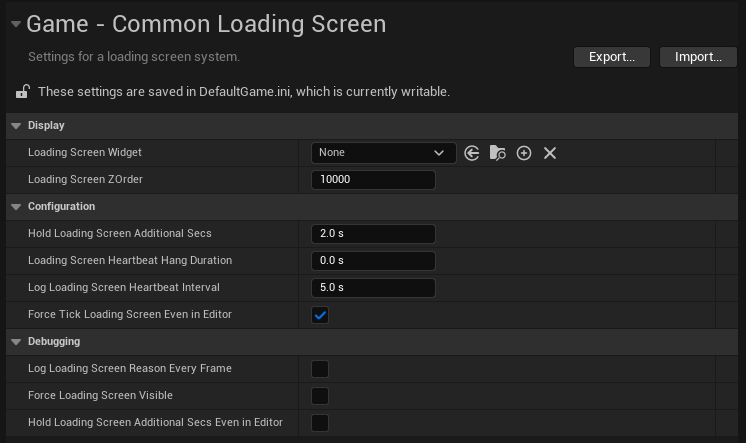
I don’t see any documentation about this plugin, so I’ll mention details here. This plugin contains two modules: CommonLoadingScreen and CommonStartupLoadingScreen. They are split because they serve different phases and have different dependency and initialization requirements:
CommonStartupLoadingScreen
Early startup UI that needs engine subsystems that aren’t available at the same time. Depends on PreLoadScreen (and Slate). What’s odd is that this module adds a private dependency for MoviePlayer, but it doesn’t use it. I was able to build a project while removing MoviePlayer.
FCommonPreLoadScreeninherits fromFPreLoadScreenBase. On Init(), it creates an instance ofSCommonPreLoadingScreenWidgetand adds it to the main viewport early in startup.SCommonPreLoadingScreenWidgetrenders a plain solid background (black).- During startup,
<strong>FCommonStartupLoadingScreenModule</strong>registers theFCommonPreLoadScreeninstance with the centralizedFPreLoadScreenManager. ThisFPreLoadScreenManageris the component responsible for actually showing and hiding registered pre-load screens at the appropriate times (startup, map load, etc). - When
FPreLoadScreenManagercleans up,<strong>FCommonStartupLoadingScreenModule</strong>drops its references so the widget is removed/garbage-collected.
CommonLoadingScreen
This is the one that contains the runtime API you need to control the loading screen.
ULoadingScreenManager is a Game Instance Subsystem and a Tickable GameObject that centrally decides when a loading screen should be shown, creates/destroys the Slate widget, blocks input while visible, and tweaks runtime settings while the screen is up. There’s a lot going on here. I’ll try to summarize the important takeaways:
Initialize()binds to engine delegates:FCoreUObjectDelegates::PreLoadMapWithContextandPostLoadMapWithWorld.Deinitialize()removes delegates, stops input blocking, removes widget and disables ticking.- Tick() calls
UpdateLoadingScreen(). UpdateLoadingScreen()callsShouldShowLoadingScreen():ShouldShowLoadingScreen()checksCheckForAnyNeedToShowLoadingScreen()and applies hold-on behavior (extra seconds to allow texture streaming) controlled by settings + CVar.CheckForAnyNeedToShowLoadingScreen()tests through various conditions if loading screen should be visible. The notable one is theILoadingProcessInterface::ShouldShowLoadingScreen()queries onExternalLoadingProcessors, the one we hook into when using this plugin.ShowLoadingScreen()andHideLoadingScreen()are self-explanatory. They also block/unblock input.- For input blocking,
FLoadingScreenInputPreProcessorimplementsIInputProcessor.StartBlockingInput()registers it withFSlateApplication(priority 0);StopBlockingInput()unregisters it. The processor returns true for input handling (thus swallowing input) except in editor builds (CanEatInput()returns false ifGIsEditor). - When loading screen is visible,
ChangePerformanceSettings(bool)adjust settings to disable world rendering and prioritize streaming in levels
Now the public APIs we will use:
UFUNCTION(BlueprintCallable, Category=LoadingScreen)
FString GetDebugReasonForShowingOrHidingLoadingScreen() const
{
	return DebugReasonForShowingOrHidingLoadingScreen;
}

/** Returns True when the loading screen is currently being shown */
bool GetLoadingScreenDisplayStatus() const
{
	return bCurrentlyShowingLoadingScreen;
}

/** Called when the loading screen visibility changes  */
DECLARE_MULTICAST_DELEGATE_OneParam(FOnLoadingScreenVisibilityChangedDelegate, bool);
FORCEINLINE FOnLoadingScreenVisibilityChangedDelegate& OnLoadingScreenVisibilityChangedDelegate() { return LoadingScreenVisibilityChanged; }

UE_API void RegisterLoadingProcessor(TScriptInterface<ILoadingProcessInterface> Interface);
UE_API void UnregisterLoadingProcessor(TScriptInterface<ILoadingProcessInterface> Interface);
How to use in your project
The default way to use this plugin is to assign a loading screen widget in Project Settings > Game > Common Loading Screen > Display > Loading Screen Widget. This will show the widget every time you open a level. However, what if you want to have more control on when to show the widget? One way is by registering your GameInstance to LoadingScreenManager as a process. The manager polls registered processors during its update and will show the loading screen if any processor (including the GameInstance) returns true. The example below is based on the Parrot Game Sample.
#include "Engine/GameInstance.h"
#include "LoadingProcessInterface.h"

UCLASS(Abstract, Blueprintable)
class UMyGameInstance : public UGameInstance, public ILoadingProcessInterface
{
    GENERATED_BODY()

public:
    void Init() override;

    UFUNCTION(BlueprintCallable)
    void HoldLoadingScreen(bool bHold);

    UFUNCTION(BlueprintPure)
    bool ShouldHoldLoadingScreen() const;

    bool ShouldShowLoadingScreen(FString& OutReason) const override;
    ....
    ....
private:
    bool bHoldLoadingScreen = false;
}
#include "LoadingScreenManager.h"
void UMyGameInstance::Init()
{
Super::Init(); // will init all the subsystems as well
....
....
if (TObjectPtr<ULoadingScreenManager> LoadingScreenManager = GetSubsystem<ULoadingScreenManager>())
{
LoadingScreenManager->RegisterLoadingProcessor(this);
}
}
void UParrotGameInstance::HoldLoadingScreen(bool bHold)
{
bHoldLoadingScreen = bHold;
}
bool UMyGameInstance::ShouldHoldLoadingScreen() const
{
return bHoldLoadingScreen;
}
bool UMyGameInstance::ShouldShowLoadingScreen(FString& OutReason) const
{
if (ShouldHoldLoadingScreen())
{
OutReason = TEXT("MyGameInstance is holding the loading screen");
return true;
}
return false;
}All you need to do now is to get the GameInstance and call HoldLoadingScreen(bool) using blueprints.
Async Loading Screen

There’s already documentation for this plugin. As mentioned, this plugin uses MoviePlayer to play a movie at level transition, on a different thread than game thread. MoviePlayer is not only playing movie files but also can display a Slate widget on top of the movie. We use this widget for the loading screen.
MoviePlayer is registered to PreLoadMap and PostLoadMapWithWorld delegates so it will be called and shut down automatically by the engine whenever you open a new level. At startup, the module builds a Slate widget tree using the layout widgets below and registers it with MoviePlayer, so the loading UI renders while maps/assets load.
Key Differences
| Common Loading Screen | Async Loading Screen |
| Depends on Slate, SlateCore, InputCore, PreLoadScreen, RenderCore, UMG, DeveloperSettings | Depends on Slate, SlateCore, and MoviePlayer, DeveloperSettings |
| Runtime, in-viewport solution driven by a GameInstanceSubsystem (ULoadingScreenManager) that ticks every frame and decides visibility. | MoviePlayer-based solution that sets up FLoadingScreenAttributes during startup and on PrepareLoadingScreen |
| Decides to display loading screen based on gameplay state: world context presence, replication (GameState), travel URL, seamless travel, pending net game, player controllers, and registered ILoadingProcessInterface participants. | Does not consult gameplay state each frame; visibility flow is driven by MoviePlayer lifecycle. Focused on cinematic playback (MoviePaths, shuffle, manual index, playback types, skippable, manual stop, allow early startup tick). |
| You create your own UUserWidget that you assign in the project settings | There is a pre-built Slate widget with pre-determined layouts where you insert your loading screen components (background image, text, tips, loading throbber) |
| Has options to block input, disable world rendering, and prioritize level streaming when loading screen is visible | No other options other than controlling what is displayed in the loading screen |
| More features but requires some C++ knowledge to take advantage. Use it if you need a gameplay-aware loading overlay that reacts to the state of the app. | Set-and-forget, drag-and-drop, no C++ knowledge required. Lots of parameters can be adjusted in the project settings. Perfect for blueprint-only projects, prototypes, and game jams where deadlines are tight. |




One Reply to “Loading Screens in Unreal Engine”
Comments are closed.